
Search Functionality in Self-Managed Commerce
The Self-Managed Commerce Search Server processes search requests from Cortex and Commerce Manager. Storefronts reach it through Cortex. Search Server uses Solr, an open source search platform built on Apache Lucene™ that provides scalable indexing, searching, and faceting. Search Server maintains indexes for products, SKUs, categories, promotions, and Commerce Manager users. For more information about Search Server technologies, see the Search Server section.
Self-Managed Commerce supports three types of search operations:
Keyword search without facets
Available at
/searches/{scope}/keywords/form. Searches the SKU index and returns one item per matching SKU, so SKUs of the same product appear as separate results. The shopper must navigate through the results until the required item is found. The keyword search does not provide facets to refine the search result.Faceted offer search
Available at
/offersearches/{scope}/offers/form. Searches the product index and returns offers, each grouping the SKUs of a product. The shopper can view all variants grouped at an offer level in search results page. The faceted offer search result consists of the available facets to refine the search result to view the exact match for the query. A shopper can view only the blue shirts in small size from all brands by selecting small in size and blue in color facets.Shoppers can refine the search results by selecting multiple facet values in multiple facets. For example, a shopper can refine the search for summer shirts to display only red shirts and white shirts. When the shopper selects the desired colors from the color facet, the product results are updated to display shirts available in those colors. Values selected within one facet are combined, and the counts for the other values in that facet are preserved so the shopper can add more.
Offer search results can also be sorted using the
sort-attribute-selectorresource. Sort attributes are configured in the Sorting tab of the store in Commerce Manager.Faceted category search
Available by following the link from a Cortex
navigationresource to itsoffersearchesresult. Returns the offers in the category and its subcategories, without keywords. The results provide the same facets and sorting as the faceted offer search, so a shopper browsing accessories can narrow the results to a price range or brand. For more information, see Faceted Navigation Workflow.
All search types return only displayable, active products from the store's catalog.
Cortex sends the search keywords for offer search and keyword search to the search server for processing and the search server returns the results to Cortex. The storefront retrieves the results from the API for shoppers to view. The Faceted Search Workflow and Architecture diagram illustrates this workflow.
Search Terms and Conventions
Product
A collective group of SKUs or variants available for shoppers to view. Each product or product bundle is represented as an offer in Cortex.
For example a shirt is a product and each SKU option, such as red, blue, or white in color, in shirt has an associated SKU.
Offer
A collection of tangible or non-tangible entities for sale in store. Each offer has an offer code, availability, price, and list of constituents. An offer represents a product or product bundle defined in Commerce Manager.
For example, shirts is an offer that consists of shirts in different colors, sizes, or fabric.
Item
A purchasable entity, such as shirt, movie, song, or subscription. An offer consists of items corresponding to each SKU associated with the offer.
For example, the SKU, SHIRT-SM-RD, might correspond to a small, red shirt. A SKU and corresponding item represent the same purchasable entity in Commerce Manager and Cortex respectively.
SKU
A Stock Keeping Unit is a number or code assigned to an exact variant of a product in the store. A SKU corresponds a purchasable entity, such as shirt, movie, song, or subscription.
For example, for the small, red shirt, the SKU might be SHIRT-SM-RD.
SKU options
A variant of SKU used to identify its association within a product, such as style, color, size, or format.
For example, the SKU SHIRT-SM-RD has the value small for the size SKU option and red for the color SKU option.
Facet
The arrangement of search results into categories based on the indexed terms. For example, size, brand, or color.
Facet value
The name of each value in a facet category. For example, for the size facet, the facet values are small, medium, or large.
List price
The price at which the manufacturer recommends that the store sell the product. For example, shirt list price might be $20-$60.
Sale or purchase price
The price at which a shopper can buy an item. This price might or might not be same as the list price. For the list price $20-$60, the sale price might be $10-$40.
Faceted Navigation
Navigation API provides facets where shoppers can also filter product listings on category pages. For example, a shopper can refine results in a category by applying facets, such as, price or brand.
Faceted Search Architecture
Overview
This section provides details of the faceted search architecture and describes the end-to-end workflow of a search query, showing where facets are configured and processed.
Faceted Search Workflow and Architecture
Business users can configure facets in Commerce Manager and shoppers can use these facets to refine the search results. The following diagram illustrates the faceted search workflow for:
The business users who configure facets (shown in red)
The shoppers initiating search and the end-to-end data flow of the search query processing (shown in green)
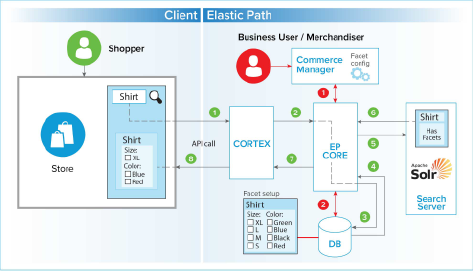
Facet Configuration Workflow
Business users and merchandisers configure facets in Commerce Manager.
The following workflow lists the steps for facet configuration:
Business users identify and configure facets in the store's Facets tab. Each facet belongs to one of these groups:
- Product Attribute
- SKU Attribute
- SKU Option
- Field: the built-in fields Product Name, Product Sku Code, Brand, Category, Price, Height, Width, Length, and Weight
Each facet has a facet type of Facet, Range Facet, or No Facet. Range Facet is available only for Integer and Decimal values. The Price facet is shown only if the
COMMERCE/STORE/FILTEREDNAVIGATION/priceFacetingEnabledsetting istrue.Commerce Manager sends the facet configurations through Self-Managed Commerce Core to save in the database.
Self-Managed Commerce Core caches the facet configuration for each store for up to one hour, so changes might not be visible in Cortex immediately.
For more information on configuring facets, see the Faceted Search section in the Commerce Manager guide.
Faceted Offer Search Retrieval Workflow
This section provides an overview of the end-to-end data flow and sequence of events for a search query initiated by a shopper, shown in the faceted architecture diagram above.
The following data flow lists the steps for facet search retrieval:
Shopper enters shirt in the storefront’s search field.
The storefront submits the keywords to the Cortex
offersearchesform.Cortex sends the API call to Self-Managed Commerce Core.
Self-Managed Commerce Core retrieves the store's facet configuration from its cache, or from the database if the cache has expired.
Self-Managed Commerce Core determines the enabled facets and the searchable fields to match the keywords against.
Self-Managed Commerce Core creates the search request and sends it to the Search Server.
The Search Server returns offers with the relevant facets and facet values to Self-Managed Commerce Core.
Self-Managed Commerce Core removes facet values with a zero count and sends the list of relevant facets and facet values to Cortex.
Cortex returns offers with the relevant facets to the storefront.
The shopper can use the facets and facet values to filter the search results further.
Faceted Navigation Workflow
This section provides an overview of the end-to-end data flow and sequence of events for a faceted navigation. Faceted navigation uses the same facet configuration as offer search. For more information on configuring facets, see the Faceted Search section in the Commerce Manager guide.
The following data flow lists the steps for facet retrieval and display:
- Shopper navigates to a category, such as accessories.
- Storefront follows the link from the Cortex
navigationresource to itsoffersearchesresult. - Self-Managed Commerce Core searches for offers in the category and its subcategories, without keywords or fuzzy matching.
- Cortex returns the offers with the relevant facets, such as category, price, brand, and attributes, and the
sort-attribute-selectorresource. - Shopper selects a facet value, such as Price: $50-$100.
- Cortex returns the offers in the $50-$100 price range, with the facets updated to show the selection.
The navigation resource also links to the category's featured offers at /offersearches/{scope}/featuredoffers/{category-id}.
Enabling Searchability for Attributes
The Searchable option on each facet in the store's Facets tab controls which fields the offer search matches keywords against. Self-Managed Commerce Core adds the Solr field for each searchable facet, with its configured boost, to the Solr qf parameter. If no facet in the store is searchable, all filter attributes are used instead.
For example, if the Optical Zoom attribute is searchable, a search for camera 50x matches cameras whose Optical Zoom value is 50x.
The Searchable option affects only the offer search. It does not affect faceted navigation or the keyword search.
No Solr schema change is required. Attributes are indexed automatically through dynamic fields in product.schema.xml, using field names of the form attribute.<attribute key>[_<locale>]_<type suffix>.
Best Practices
Make only the facets that shoppers search by searchable. Each searchable facet adds a field to the query, which can lower the relevance of results.