Search Server Clustering
Elastic Path Search Server provides product discovery (searching and browsing) for Cortex and catalog management for Commerce Manager. This section provides advice for how to scale a Search Server deployment in a production environment. For staging environments, it is usually sufficient to have a single search master and no slaves.
Topology
Search Server is implemented using a primary-replica topology. Only a single primary server can run at a time, otherwise database conflicts occur updating the TINDEXBUILDSTATUS table.
Two common deployment topologies:
-
Small Deployment Topology
The simplest topology suitable for small deployments is to deploy a Search replica on every Cortex node. Then access Search Server through the
http://localhost:8082/searchserverURL. -
Large Deployment Topology
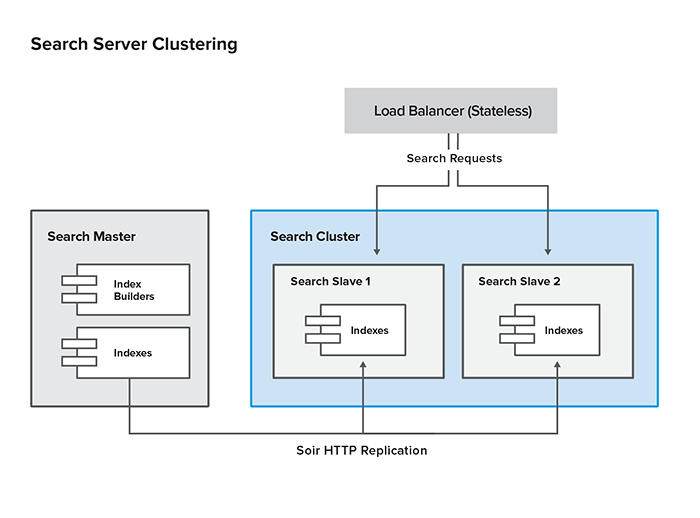
Large deployments typically have a separate cluster of Search replicas behind a stateless load balancer. The cluster is accessed through the load balancer URL.
As a starting point, we recommend deploying one Search replica for every three Cortex servers to support catalog searching and browsing. This ratio may vary depending on the searching and browsing patterns for the store and customizations that change search server usage. The following is a large deployment example:
Cluster Configuration
The primary Search server and replica are deployed using the same WAR file. By default, the WAR is configured to run as a primary node with replication disabled. The following steps configure both primary and replica.
-
Externalize
solrHomedirectory (primary and replica).Move the
solrHomedirectory from the Search WAR to an external location. We recommend to include thesolrHomein the deployment package as a separate artifact and then deploy the artifact to the desired location on the server. The benefits of this method are:- You can add replication configuration without invading the WAR
- Search indexes are not deleted when a new WAR is deployed
After
solrHomeis deployed to the desired location, set the following JVM (Java Virtual Machine) parameter in your appserver startup script:-Dsolr.solr.home=/ep/external-solrHome -
Configure the primary replication.
Each config file in
solrHome/confhas an<xi:include>tag that points to a corresponding replication configuration file.<!-- include replication settings --><xi:include href="replication/product.solr.replication.config.xml" xmlns:xi="http://www.w3.org/2001/XInclude"><!-- Silent fallback if no external configuration found --><xi:fallback/></xi:include>In this case, Solr looks for
product.solr.replication.config.xmlin thereplication/product.solr.replication.config.xmlrelative path. The relative path is relative each of the core index folders in the Solr home folder, such as/ep/external-solrHome/cores/product(if-Dsolr.solr.homeis set to/ep/external-solrHome).Here is an example of the
product.solr.replication.config.xmlfile:<requestHandler name="/replication" class="solr.ReplicationHandler"><lst name="master"><!--Replicate on 'startup' and 'commit'. 'optimize' is also a valid value for replicateAfter. --><str name="replicateAfter">startup</str><str name="replicateAfter">commit</str><!-- <str name="replicateAfter">optimize</str> --><!--Create a backup after 'optimize'. Other values can be 'commit', 'startup'. It ispossible to have multiple entries of this config string. Note that this is just for backup,replication does not require this. --><!-- <str name="backupAfter">optimize</str> --><!--If configuration files need to be replicated give the names here, separated by comma --><str name="confFiles">schema.xml,stopwords.txt,elevate.xml</str><!--The default value of reservation is 10 secs.See the documentation below. Normally, youshould not need to specify this --><str name="commitReserveDuration">00:00:10</str></lst></requestHandler>Create separate config files for each index you want replicated. You don’t have to replicate all indexes; just the ones that are actually needed. Here is the full list of config files:
Index Replication Config File Index Used By Category category.solr.replication.config.xmlCortex, CM CM User cmuser.solr.replication.config.xmlCM Product product.solr.replication.config.xmlCortex, CM Promotion promotion.solr.replication.config.xmlCM SKU sku.solr.replication.config.xmlCM -
For each replication configuration file on the primary server, create a corresponding configuration file on the replica. Here is an example of the
product.solr.replication.config.xmlfile:<requestHandler name="/replication" class="solr.ReplicationHandler" ><lst name="slave"><str name="enable">true</str><!--fully qualified url for the replication handler of primary. It is possible to pass on thisas a request param for the fetchindex command--><str name="masterUrl">http://venus.elasticpath.net:8080/searchserver/product/replication</str><!--Interval in which the replica should poll master .Format is HH:mm:ss . If this is absent replica doesnot poll automatically.But a fetchindex can be triggered from the admin or the http API --><str name="pollInterval">00:00:20</str><!-- THE FOLLOWING PARAMETERS ARE USUALLY NOT REQUIRED--><!--to use compression while transferring the index files. The possible values are internal|externalif the value is 'external' make sure that your primary Solr has the settings to honour theaccept-encoding header.see here for details http://wiki.apache.org/solr/SolrHttpCompressionIf it is 'internal' everything will be taken care of automatically.USE THIS ONLY IF YOUR BANDWIDTH IS LOW . THIS CAN ACTUALLY SLOWDOWN REPLICATION IN A LAN--><str name="compression">internal</str><!--The following values are used when the replica connects to the master to download the index files.Default values implicitly set as 5000ms and 10000ms respectively. The user DOES NOT need to specifythese unless the bandwidth is extremely low or if there is an extremely high latency--><str name="httpConnTimeout">5000</str><str name="httpReadTimeout">10000</str><!-- If HTTP Basic authentication is enabled on the primary server, then the replica can be configuredwith the following<str name="httpBasicAuthUser">username</str><str name="httpBasicAuthPassword">password</str>--></lst></requestHandler> -
Set search server mode
On each search server, configure the search mode through the
-Dep.search.modeJava system property. Set it toPRIMARYorREPLICAas you require.For more information about the
ep.search.modesetting, see the search mode property. -
Configure the search server URLs
Configure the search server URLs through the
-Dep.search.primary.urland-Dep.search.replica.urlJava system properties. The URLs that you set depends on your deployment topology.-
Simple topology
In a simple deployment topology, you only need to configure the replica value to point to
http://localhost:<port>/<contextPath>/. -
Replica cluster topology
If the search replicas are clustered behind a load balancer, then you need two setting values or Java system properties. The replica value identifies the replica cluster and the primary value identifies the search primary.
Setting Context Path Java System Property Value replica -Dep.search.replica.urlURL of the load balancer for the replica cluster primary -Dep.search.primary.urlURL of the search primary
-
Updating Search Server Cluster
-
Halt any user updates to the system and ensure no changes are in progress through Commerce Manager, the Import/Export tool, or the Data Sync tool.
-
In Commerce Manager, ensure the indexing activity is complete for all indexes. You can find the index status in the Configuration section under Search Indexes.
-
Back up all existing indexes by calling the following links. These links will call the Solr replication API:
http://master_host:port/searchserver/category/replication?command=backuphttp://master_host:port/searchserver/cmuser/replication?command=backuphttp://master_host:port/searchserver/product/replication?command=backuphttp://master_host:port/searchserver/promotion/replication?command=backuphttp://master_host:port/searchserver/shippingservicelevel/replication?command=backuphttp://master_host:port/searchserver/sku/replication?command=backup -
Disable replication on the replica servers by calling the following links. Ensure this is done for all replicas.
http://slave_host:port/searchserver/category/replication?command=disablepollhttp://slave_host:port/searchserver/cmuser/replication?command=disablepollhttp://slave_host:port/searchserver/product/replication?command=disablepollhttp://slave_host:port/searchserver/promotion/replication?command=disablepollhttp://slave_host:port/searchserver/shippingservicelevel/replication?command=disablepollhttp://slave_host:port/searchserver/sku/replication?command=disablepoll -
Shut down, update, and restart the primary search server:
- Shut down the application server.
- Redeploy the updated search server
.warfile. - Restart the application server.
If your search indexes are normally located within the
searchserver/WEB-INFfolder, you may need to restore them from your back up location or do a full rebuild. -
Using Commerce Manager, rebuild any indexes that would be affected by the update.
For step-by-step instructions on how to do this, see Requesting Search Index Rebuilds.
-
Verify the primary indexes.
Since the primary server is a full search instance, you can check its state by doing one of the following:
- Issuing manual Solr queries.
- By redirecting Cortex server instance to point to the primary instead of a replica.
-
Do one of the following:
-
If you are applying code updates to the replica servers, do the following for all replicas:
-
Remove the replicas from the search cluster.
-
Shutdown the server.
-
Redeploy the updated search server
warfile. -
Restart the server.
The restarted replicas will immediately begin polling the primary for index updates on startup.
-
Restore the replicas to the search cluster.
-
-
If you are not updating the replicas servers, resume index replication by calling the following links for all replicas:
http://slave_host:port/searchserver/category/replication?command=enablepollhttp://slave_host:port/searchserver/cmuser/replication?command=enablepollhttp://slave_host:port/searchserver/product/replication?command=enablepollhttp://slave_host:port/searchserver/promotion/replication?command=enablepollhttp://slave_host:port/searchserver/shippingservicelevel/replication?command=enablepollhttp://slave_host:port/searchserver/sku/replication?command=enablepoll -
Search Server Cluster Checklist
To verify if your search server cluster is running properly:
- Check if the indexes are being replicated to the replica server.
- Ensure requests are being redirected to the replica.
- Ensure the update requests are only redirected to the primary server.
- Trace requests in the Apache HTTP server’s log and Tomcat server’s access logs.
- See if requests are redirected to another server if a server is unavailable.