Carts
Each account in a store is configured with a default cart. Shoppers can also create carts for personal use. All carts in an account are private. Shoppers select item, specify the quantity, and add the item to a cart. All carts except the default cart can be deleted.
You can enable shoppers to add items to their shopping cart in the following ways:
- Find an item in the catalog, specify a quantity, and add it to the cart
- Scan an item bar code, specify a quantity, and add it to the cart
- Enter an item number and quantity in a chatbot
- Speak a voice command with an item number and quantity
If you want to enable shoppers to create a temporary list of items before adding the items to the cart, see Bulk Order.
Multiple Carts
A shopper can create and save as many carts as required for the shopper’s account in a store. A shopper can select an item, add the item to one of the carts, and check out a cart without affecting the content or status of other carts.
For example, John creates three carts: family, friends, and a birthday cart that is created for his son’s birthday. He can select items, add the items to the family cart or the birthday cart as required and then complete the purchase only for the birthday cart.
For a store using the Account Management service, each associate in an account has a default cart and can create any number of carts that only the associate can use. For more information, see the Account Management service documentation.
Only registered users can create carts.
Cart descriptors
The cart descriptor provides the details about the cart, such as name or date of creation. The default configuration sets name as the descriptor. Depending on the configuration, the CreateCartForm displays the fields required to create a cart.
You can configure the cart descriptor for a store using the modifier group configuration.
Cortex API
To manage carts and add items to carts, use the resources in the Carts resource family.
Interface examples
You can find examples of a catalog UI component and a shopping cart UI component in the React PWA (Progressive Web Application) Storefront. For examples of other interfaces, see the Reference Chatbot and the Reference Alexa Skill guides.
Items in a catalog
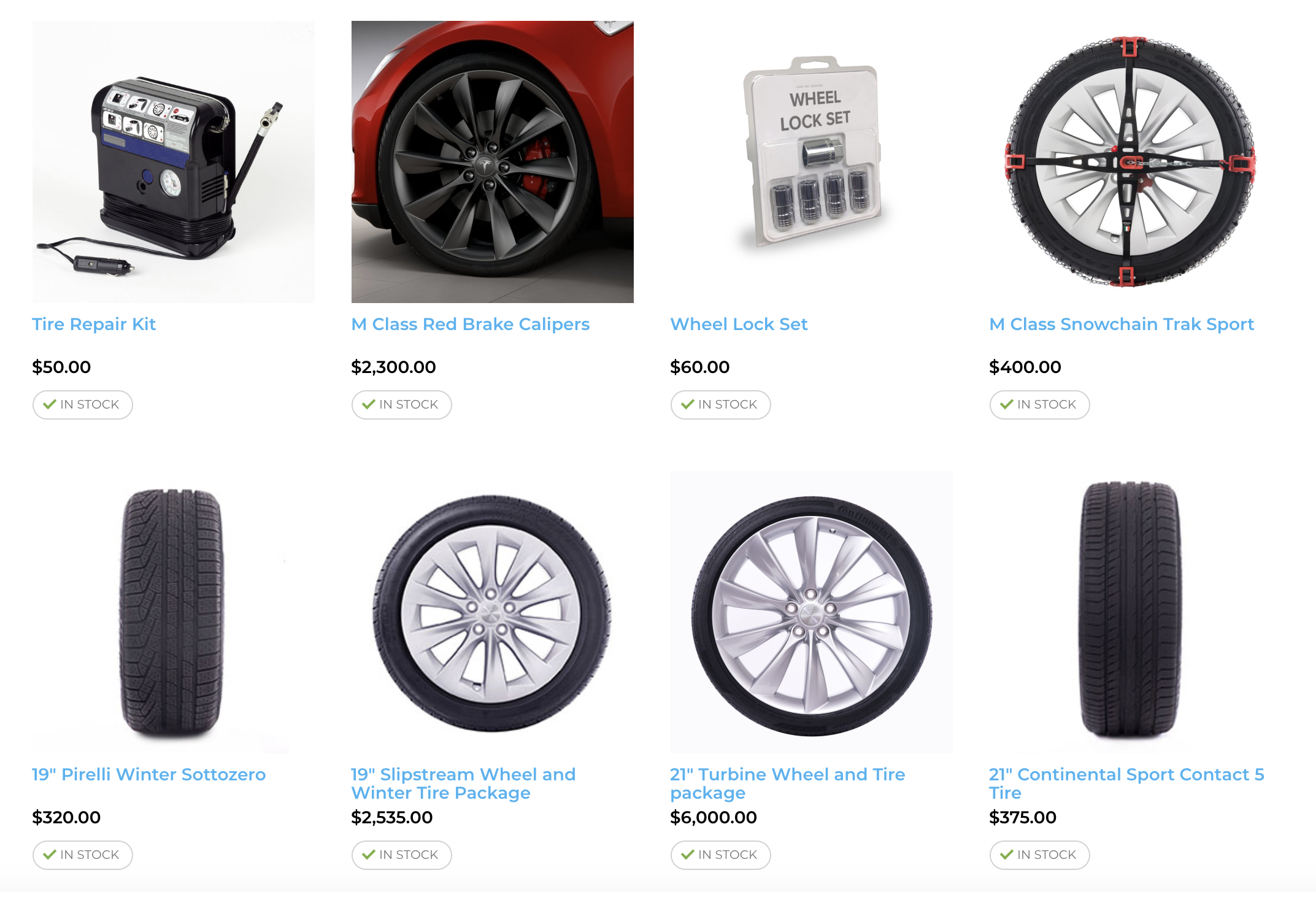
The following image shows items in a catalog page:
Creating new carts
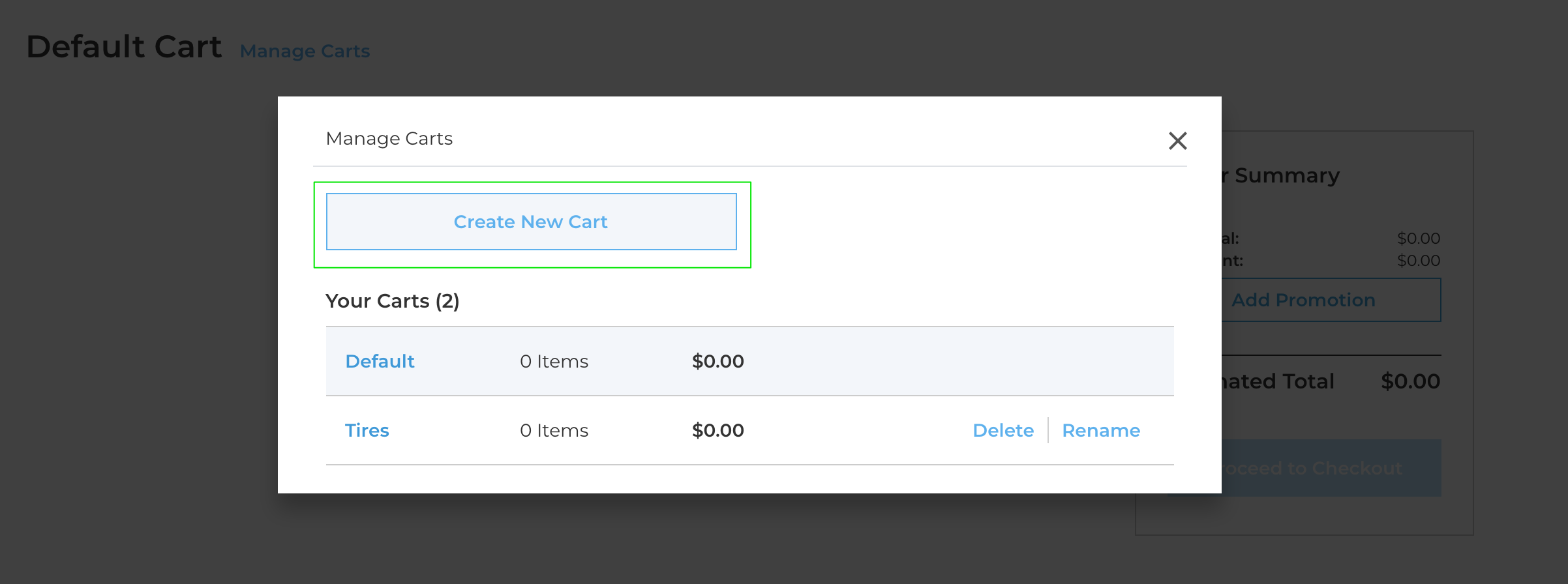
The following image shows the option to create a new cart from the carts page:
Adding items to a shopping cart
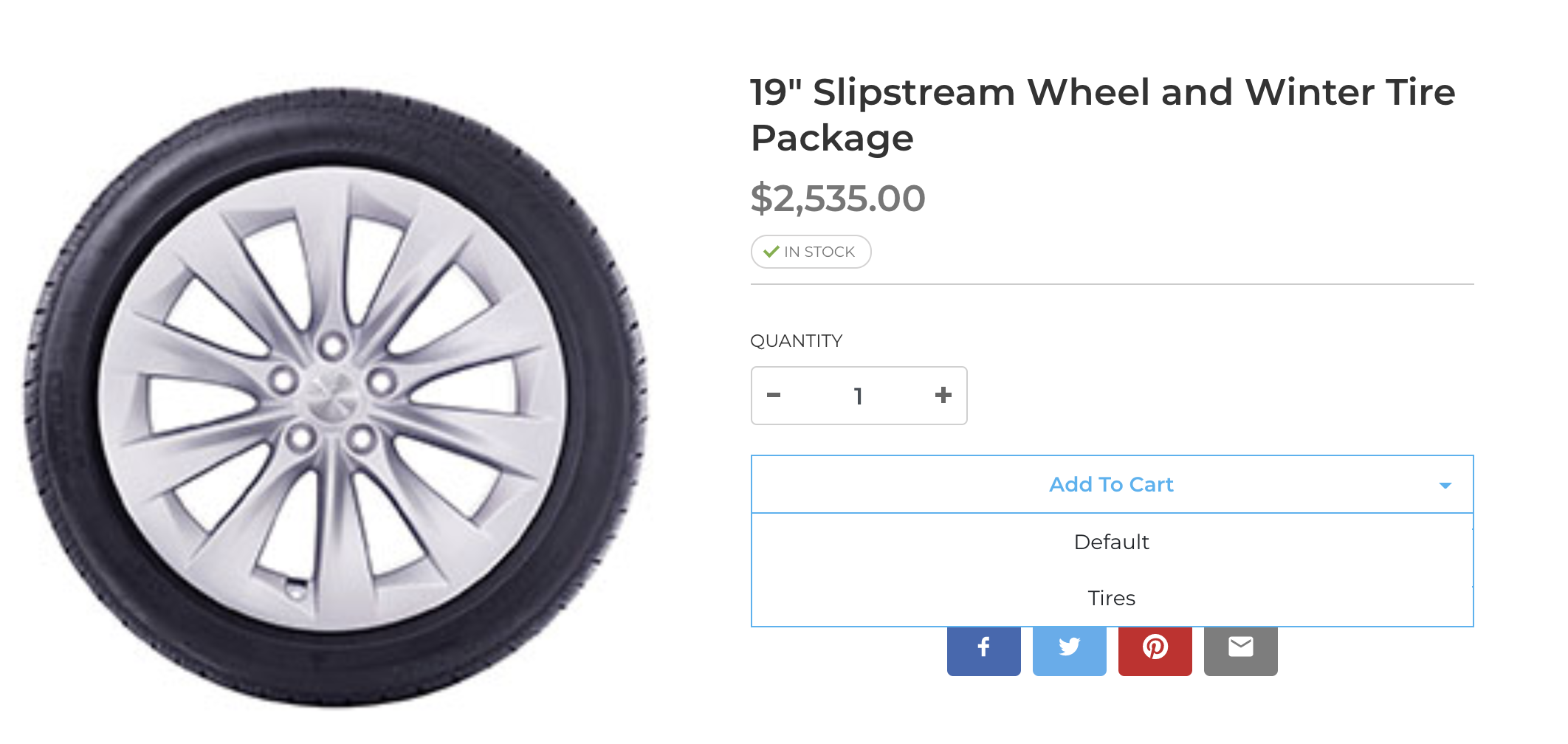
The following image shows selecting a cart to add an item:
Checking out a shopping cart
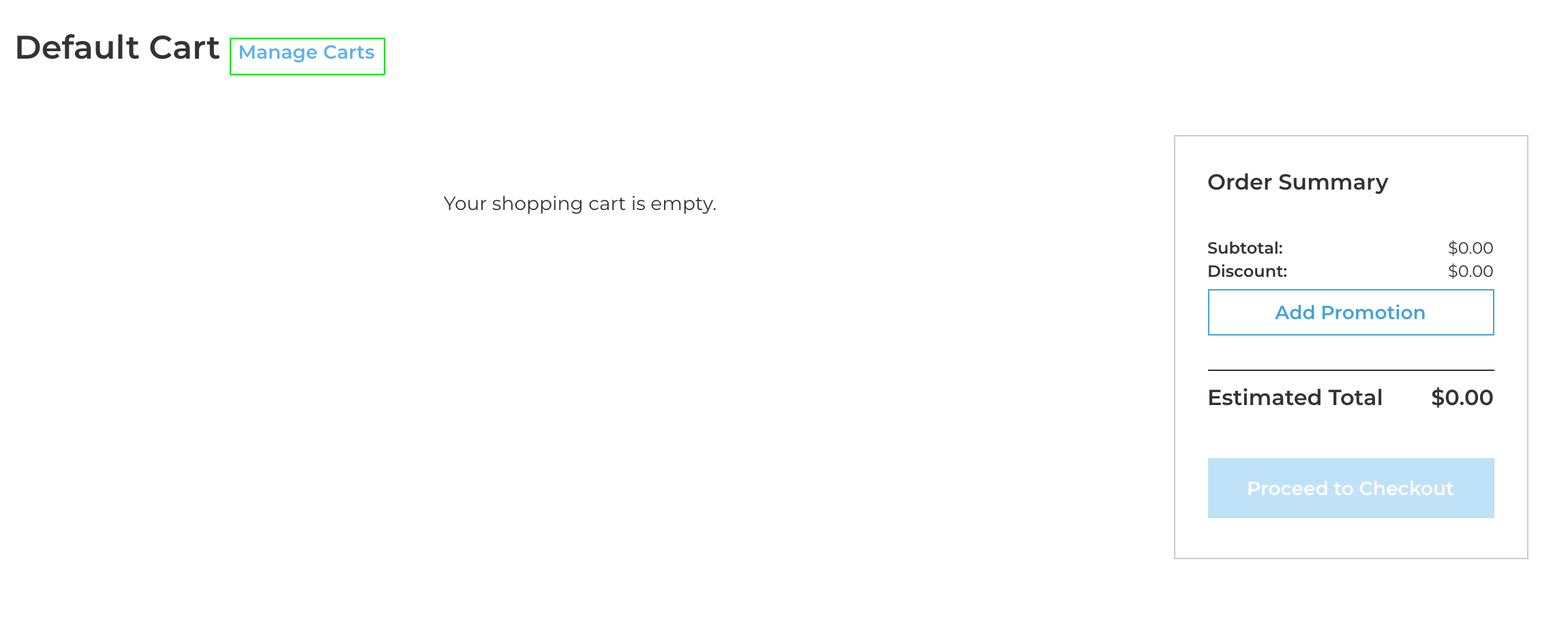
The following image shows the carts page and the option to manage the carts:
The following image shows the Manage Carts page that has two carts:
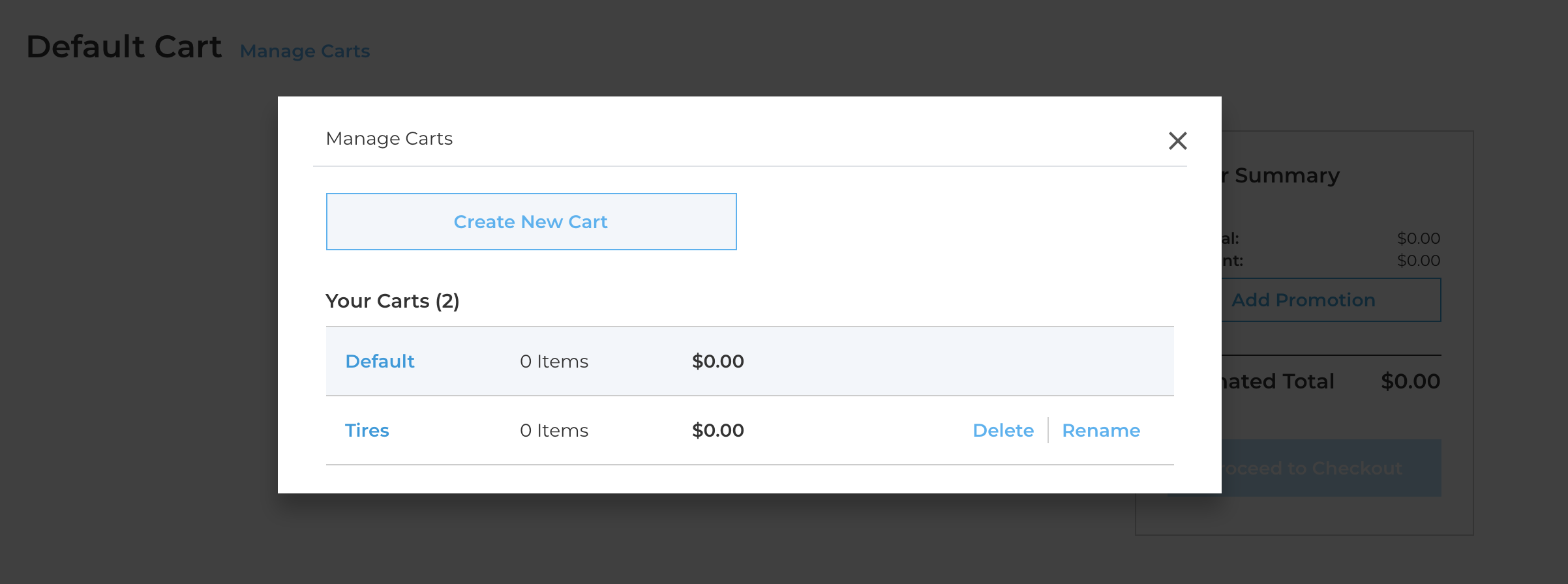
You can select a cart from the list.
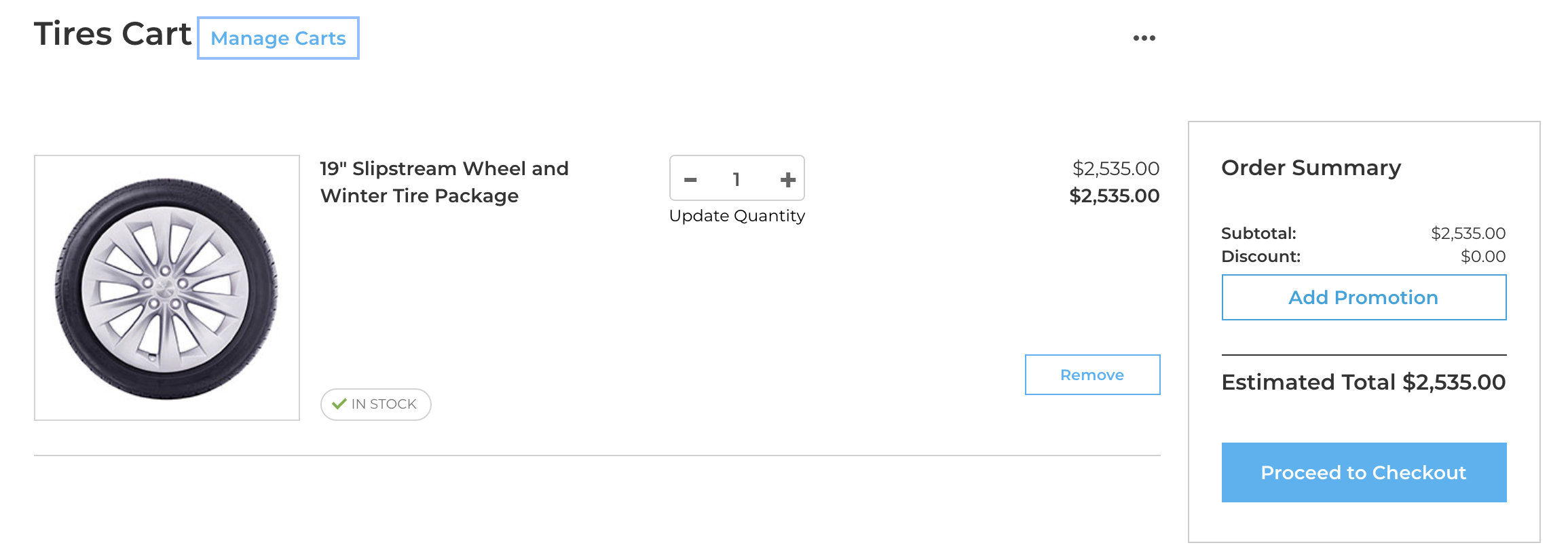
The following image shows the Tires cart details and checkout option:
Deleting a shopping cart
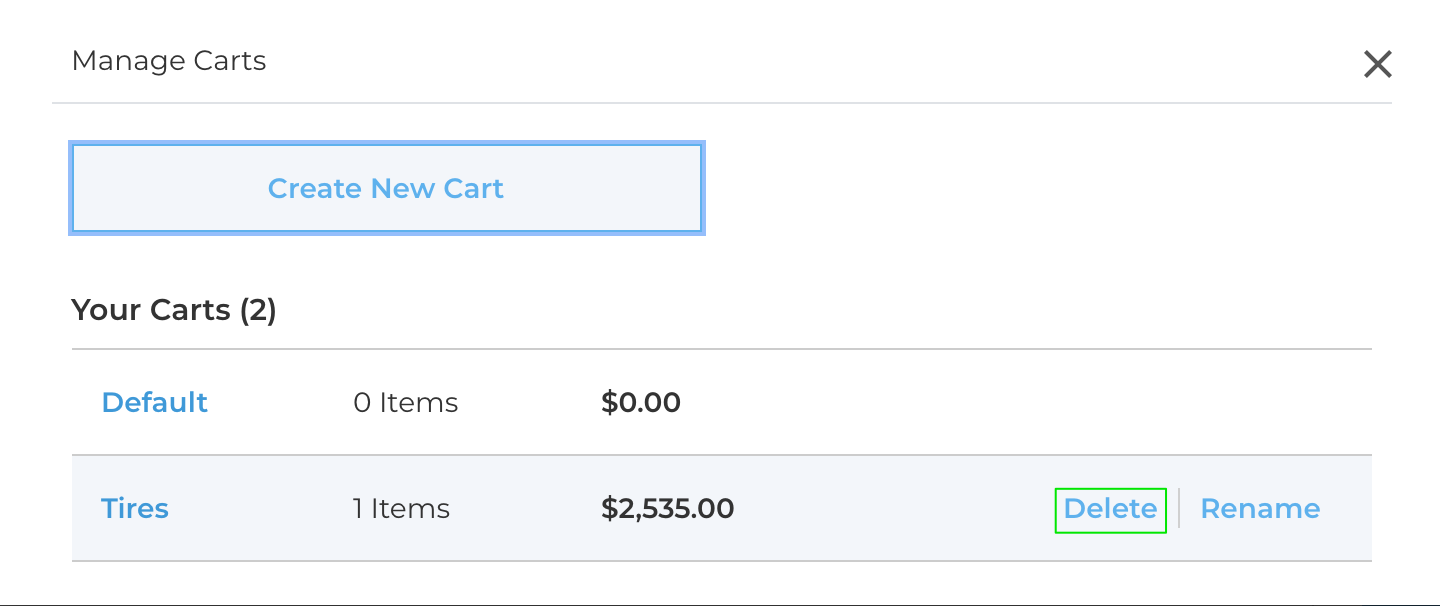
The following image shows options to delete or rename a cart: