Promotions
This section contains information on how promotions are applied. List prices and sale prices for products are stored in the Pricing and support multiple price tiers so that higher quantities can be purchased at a discount. These prices can be discounted dynamically using rules defined for the promotion rules engine.
Promotion rule domain model
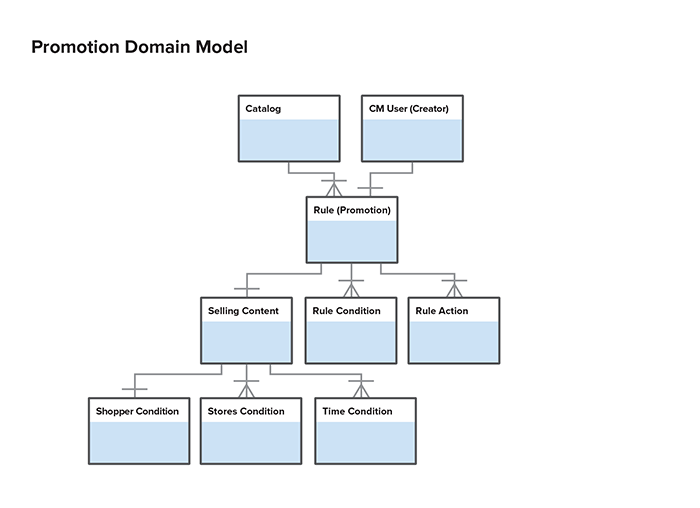
Promotion rule engine
The promotion rule engine allows marketers to create promotions that customers will see in the store.
JBoss Rules
The promotion rule engine is built on JBoss Rules (formerly Drools Rules). JBoss Rules is a third-party rules engine that uses a fast algorithm to evaluate rule conditions and execute their actions. The input to the JBoss Rules engine is a set of objects used in the condition evaluation and action execution as well as the set of rules, which we express as text in the proprietary Drools language.
The representation of a rule in Elastic Path is an object model of the components of a rule such as conditions, actions, and parameters used by various rule elements. The object model is persisted in the database directly with one table corresponding to one class in the rule object model. This allows the graph of rule objects to be easily stored, retrieved and modified, and stored again. The objects in the rule object model are responsible for generating Drools language code that is passed to JBoss Rules. The generated code is not persisted and it is not possible to re-create the object model representation of a rule given the Drools code.
JBoss rules supports basic evaluation of objects’ properties within the engine itself. However, more complex operations are not supported. In Elastic Path, nearly all conditions are evaluated in Java and the actions are also executed in Java. This allows the condition and action code to be easily debugged and unit tested. The PromotionRuleDelegate is the class that is responsible for computing conditions and executing actions as required by JBoss Rules.
Components of a promotion
A promotion is a rule. A rule consists of rule elements. There are two types of rule elements:
-
Condition: Describes the set of conditions that must be true for the action to be executed
Conditions are optional. If no condition is specified, then the action will execute whenever the customer is eligible. When multiple conditions are specified, the user can again choose whether all or any of them must be satisfied.
-
Action: Describes the action that will be taken if the the customer is eligible and all conditions are met
If multiple actions are present, all actions will be executed when the conditions are met
Before Elastic Path 6.2.1, there was a third type of rule element: eligibility. This was replaced by the shopper segment, which is determined by evaluating information stored in the shopper’s tag set. The PROMOTIONS_SHOPPER tag dictionary represents tags that relate to shoppers. For more information on customer segmentation and the tagging framework, see the tagging framework section.
Promotion editor
The Commerce Manager promotion editor allows the user to compose rules from rule elements and then save those rules in the database. The system then retrieves the rules from the database as object graphs, requests the corresponding Drools code from the rule objects, and passes the rule code to the JBoss Rules engine. JBoss Rules will then determine which rules’ actions should be executed on the Java objects that are passed to it.
Using the promotion rule editor in the Commerce Manager, users mix and match promotion rule elements to create rules. Therefore, all rule elements are independent of each other. It is not possible for an action to use information determined by a condition.
Promotion types (scenarios)
There are two types of promotions:
- Catalog Promotions
- Shopping Cart Promotions
Catalog Promotions
These promotions are applied when looking up product prices, for example, while the shopper is browsing the product catalog or viewing product details. This promotion type supports relatively simple rules, such as x% off a product or category.
All catalog promotions are applied simultaneously. The conditions are checked at the same time and then discounts are applied. In cases where multiple discounts apply to the same item, the lowest discounted price always wins.
Shopping Cart Promotions
These promotions are only applied when the shopper is viewing items in their shopping cart. This promotion type supports more complex rules, usually requiring awareness of the combinations of items in the cart.
Cart promotions are applied in two steps. Promotions with shipping and cart item discounts are applied first. Then, promotions with cart subtotal discounts are applied. This ensures that shipping and cart item discounts are applied before any cart subtotal discounts are calculated.
Key Classes
The key classes that represent rules in the domain model are:
Rule- A promotion. Each rule contains a collection of rule elements (conditions and actions)RuleSet- A set of rules valid for each promotion typeCondition- A condition that must be true for a promotion to be availableAction- The action to perform if a rule’s conditions are metRuleParameter- Actions and conditions typically require parameters held by a RuleParameter object
These domain objects generate the Drools code that is executed by the rule engine. The rule domain objects are also responsible for self validation. The validation and code generation is invoked by clients at the top level (Rule Set) and propagated down to the child objects.
Other key classes include:
EpRuleEngine- Retrieves rules from persistent storage, compiles them into Drools language, and evaluates them against domain objects when requested by clientsPromotionRuleDelegateImpl- Evaluates rule conditions and executes rule actions
Drools code
The rules objects generate Drools code such as the example below:
//Objects used in the evaluation or action must be imported
import com.elasticpath.domain.rules.PromotionRuleExceptions;
import com.elasticpath.domain.shoppingcart.CartItem;
import com.elasticpath.domain.catalog.ProductSku;
import com.elasticpath.domain.shoppingcart.ShoppingCart;
import com.elasticpath.domain.rules.PromotionRuleDelegate;
import com.elasticpath.domain.catalog.Product;

//Each rule must have a name, defined here
rule "First Time Buyer"

  //Salience determines the order of evaluation,
  // higher salience means higher priority
 salience -1

  //Agenda groups are evaluated and executed together
 agenda-group "SubtotalDependent"

    //Start of the "Conditions" Block
    when

         //Declare objects used in the rule
         delegate: PromotionRuleDelegate ( )
         cart: ShoppingCart ( )
         eval ( delegate.checkDateRange("0","0") )

         //Ask the delegate to evaluate whether conditions are true
         eval ( delegate.isFirstTimeBuyer(cart) )


    //The "then" block defines what will happen when the conditions in
    //the "when" block are all true
    then

         //Ask the delegate to execute an action
         delegate.applyOrderDiscountAmount(cart, 4489216, "75");
end
Adding a new rule element
Rules are composed of rule elements, which can be conditions or actions. To add a new rule element:
-
Add the implementation to the
com.elasticpath.domain.rules.implpackage and extend from an appropriate base class.If you are creating an action, extend
AbstractRuleActionImpl, otherwise extendAbstractRuleElementImpl. -
Add a JUnit test case for the element, which should extend
AbstractTestRuleElementImpl. -
Add a method in
PromotionRuleDelegateImpl(and its interface) that will execute the action or condition of your rule element. -
Unit test this delegate method in
PromotionRuleDelegateImplTest. -
Add the rule element bean name to
ContextIdNamesand also to the bean definitions inPrototypeBeanFactory. -
Add the rule element to the appropriate category in the rule service bean definition in
service.xml. -
Integration test a rule containing the new rule element by firing it through the harness set up in
EpRuleEngineImplTest. -
Add an entry in the
RuleElementTypeenum for the new rule element. -
If adding a new rule parameter type, you will need to create an extension for the Commerce Manager. This will have to be registered against the extension point
com.elasticpath.cmclient.store.PromotionExtender -
You will need to create the following classes:
PromotionWidgetCreator- UI class for displaying the new ruleMessageReader- Used by the PromotionWidgetUtil class to read localized messagesExtPromotionsMessages- defines localized text for the rule elementExtPromotionsResources.properties- localized text for the rule element
Compiled rules stored in the database are no longer valid after upgrading to a newer release of Elastic Path. They are also invalidated if existing code is changed due to serialization, since the precompiled classes themselves are stored. In both cases, you need to drop all rows in the TRULESTORAGE table.
Testing rules
Rules are extensively tested by JUnit at several levels. The following kinds of JUnit tests are most frequently added or extended when extending the rules system:
-
Rule Element Tests
Each RuleElement should have a unit test. Tests for conditions should extend
AbstractTestRuleElementImpl. Tests for actions should extendAbstractRuleElementImplTest. -
PromotionRuleDelegateImplTest
Add test cases to this class to test the execution of rule actions by the
PromotionRuleDelegateImpl. Tests should also be added for each condition and eligibility decision that is delegated to thePromotionRuleDelegate. -
EpRuleEngineImplTest
This test suite is used to test the highest level of integration in the core rules system and actually runs the JBoss Rules engine to test that it executes generated rule code.
When testing a new rule, add the rule element to the rule set in
createShoppingCartRuleSetorcreateCatalogRuleSetdepending on the scenario in which the rule element is valid. The rule delegate method that should be invoked by the rule engine must then be mocked intestFireShoppingCartRules()ortestFireCatalogRules()
Once the rule system has successfully executed the unit tests, rules can be tested in the Commerce Manager and Cortex Studio. For information on setting up the system for easier rule testing, see the Configuration section.
To assist with troubleshooting rules engine failures, the Drools code generated by the rules domain objects can be logged in the log or console.
Rules caching
The set of rules to be passed to JBoss Rules is loaded at start time and cached by the EpRuleEngineImpl. EpRuleEngine.compileRuleBase() is invoked periodically by a Quartz scheduled job to reload rules from the database.
Configuration
The promotion rulebase can be configured to rebuild periodically. Scheduling and configuration can be found under the search server’s Scheduled Jobs (Search Server). This means that rules will be reloaded from the database and compiled into the input format for JBoss Rules. This rule compilation operation is expensive and should not be performed more frequently than every 5-10 seconds.
For rules to take effect immediately after rulebase compilation, it is necessary to disable caching (Both the second-level cache and the product retrieval strategy defined in service.xml). This is useful for testing but disabling caching is not recommended for production environments.
Promotion rule parameters
The promotion rule editor can be extended to support additional rule elements such as conditions and actions.
Conditions and actions typically require parameters such as product ids and discount amounts to fully specify the rule element. New elements can be added by following the steps in the promotion rule engine. Those steps are sufficient for adding new rule elements that use the existing set of parameters. However, if a new parameter type is required by a new rule element, modifications must be made to the Commerce Manager promotion rule editor. Developers who extend the rules engine subsystem should be familiar with the promotion rule engine.
Standard rule parameters
The following rule parameters are available out-of-the-box. The constant key names of the rule parameters are listed.
categoryId- The UidPk of a categoryproductId- The UidPk of a productdiscountAmount- The amount to be discounteddiscountPercent- A percentage amount to be discountedcurrency- The currency selected by the shoppercustomerGroupId- The UidPk of a customer groupsubtotalAmount- The shopping cart subtotalnumItems- Represents a quantity of items, typically products or SKUsskuCode- The SKU code of a Product SKUshippingServiceLevelId- The UidPk of a shipping service levelbooleanCondition-Represents a true or false valuebrandCode- The code value for a brand associated with a product
Key files
NewPromotionWizardRulesPage- UI for adding a new rulePromotionRulesDefinitionPart- UI for editing a rulePromotionRulesWidgetUtil- utility methods for creating UI elements and performing rule element parameter data bindingPromotionsMessages- defines localized text for the rule elementPromotionsResources.properties- localized text for the rule element
How to add a new rule parameter
There are many ways that new rule parameters can be specified by the user. For example, some rule parameters may be well supported by free-form input while for other parameters the user should be prompted with a pre-set list of values. In other cases, it is desirable to open a dialog box to allow the user to select a parameter.
Because of the diversity of rule parameter input techniques, there is no simple list of steps to follow when creating new parameters in the Commerce Manager promotion rule editor. However, the following points provide some items to consider when creating new rule parameters.
-
Define a new constant in
RuleParameter.java. -
Add a new
else ifcase for your rule parameter inNewPromotionWizardRulesPageandPromotionRulesDefinitionPart.if (RuleParameter.CATEGORY_ID_KEY.equals(paramKey)) {util.addCategoryFinderLink(ruleParameter, ruleComposite, null, EpState.EDITABLE);} else if (RuleParameter.PRODUCT_ID_KEY.equals(paramKey)) {util.addProductFinderLink(ruleParameter, ruleComposite, null, EpState.EDITABLE);...} else if (RuleParameter.BRAND_CODE_KEY.equals(paramKey)) {util.addBrandCombo(ruleParameter, ruleComposite, this, getDataBindingContext(), EpState.EDITABLE);} -
If you need a custom UI component for entering the rule parameter value then add a method in
PromotionRulesWidgetUtil.public void addBrandCombo(final RuleParameter ruleParameter, final IEpLayoutComposite ruleComposite,final DisposeListener disposeListener, final DataBindingContext dataBindingContext, final EpState epState) {// create the combo boxfinal CCombo brandCombo = ruleComposite.addComboBox(epState, null);brandCombo.pack();final BrandService brandService = ServiceLocator.getService(ContextIdNames.BRAND_SERVICE);final List<Brand> brands;if (scenario == RuleScenarios.CATALOG_BROWSE_SCENARIO) {brands = brandService.findAllBrandsFromCatalog(catalog.getUidPk());} else {brands = brandService.findAllBrandsFromCatalog(store.getCatalog().getUidPk());}// populate the combo boxint selectedIndex = 0;int currBrandIndex = 0;for (final Brand currBrand : brands) {brandCombo.add(currBrand.getDisplayName(CorePlugin.getDefault().getDefaultLocale(), true));...brandCombo.setData(binding);brandCombo.addDisposeListener(disposeListener);}} -
Add a new entry and mapping in
PromotionsMessages.public static String BrandCondition;...localizedPromotionEnums.put(RuleElementType.BRAND_CONDITION, BrandCondition); -
Add the rule element text in
PromotionsResources.propertiesBrandCondition=Brand is [{0}]
Customized promotions and actions
Add a customized promotion or action to the Elastic Path platform.
Adding a custom promotion condition
-
In the
com.elasticpath.extensions.domain.rules.implpackage, create aConditionImplclass to extendAbstractRuleElementImpland implementRuleCondition.noteThis class defines Drools code in the
.drlformat in thegetRuleCodemethod. This code calls a method on the delegate object, defined byPromotionRuleDelegateImplwith the parameters that the business user specifies. The condition passes if the method returnstrue. For more information, seeCartCurrencyConditionImplas an example. -
Define the new constant.
/** Cart currency conditional ordinal. */public static final int CART_CURRENCY_CONDITION_ORDINAL = 102;/** Cart currency condition. */public static final RuleElementType CART_CURRENCY_CONDITION = new RuleElementType(CART_CURRENCY_CONDITION_ORDINAL,"cartCurrencyCondition');) -
Add one or more
RuleParameters, such asRuleParameter.PRODUCT_CODE_KEYorRuleParameter.CATEGORY_CODE_KEY.RuleParametersrepresent the fields that you can edit the condition where the shopper inserts data. A condition can use one instance of eachRuleParameter. -
In the
ep-core-plugin.xmlfile in theextensionsproject, do the following:- Add a bean for the
ConditionImplclass. - Override the
ruleServiceLocalbean by copying the existing bean from the platformservice.xmlfile. Modify it by adding the newConditionImplbean name to theallConditionsproperty list.
- Add a bean for the
-
In the extension core
jpa-persistence.xmlfile, add the fully qualifiedConditionImplclass name to the list of classes. -
In the
com.elasticpath.extensions.service.rules.implpackage in theextensionsproject, create anExtPromotionRuleDelegateImplclass to extendPromotionRuleDelegateImpl.-
In the
ep-core-plugin.xmlfile, override thepromotionRuleDelegatebean to point to the extended class. -
In the
commerce-managerproject, open thePromotionsMessages.javafile. -
Add a field named after the condition.
public String CartCurrencyCondition -
Associate the
RuleElementTypeconstant to the field in theinstantiateEnumsmethod.localizedPromotionEnums.put(RuleElementType.CART_CURRENCY_CONDITION, CartCurrencyCondition);
-
-
Open
PromotionsResources.propertiesfile to define a new property key matching the field name that you defined in thePromotionsMessages.javafile.noteEnsure that you specify the text that is displayed to the business user within Commerce Manager to add the condition to the promotion. Parameters must be specified in a sequence such as
[{0}], [{1}], [{2}]and so on.For example:
CartCurrencyCondition=Cart currency is [{0}].
Applying a custom promotion action
-
In the
com.elasticpath.extensions.domain.discounts.implpackage, create aDiscountImplclass to extendAbstractDiscountImpl.noteEnsure that this class has a constructor that uses business user configured parameters from the discount action class. It applies discounts to the
DiscountItemContainerpassed to thedoApplymethod. For example, see theCartSkuAmountDiscountImplclass. -
In the
commerce-engineproject, openRuleSetImpl. -
Add the fully qualified class name for the
DiscountImplclass into theIMPORTSset through the static constructor. -
In the
com.elasticpath.extensions.domain.rules.implpackage, create a newDiscountActionImplclass that extendsAbstractRuleActionImpland implementsRuleAction.noteThis defines Drools code in
.drlformat in thegetRuleCodemethod. The code injects theDiscountImplobject with the parameters that the business user specifies. This discount object is only injected if the action executes and the apply method will be invoked byAbstractRuleEngineImpl#applyDiscountafter the Drools evaluation completes. For example, see theCartSkuAmountDiscountActionImplclass. -
Add a new constant and the ordinal, as shown in the following example:
/** Sku attribute amount discount action ordinal. */public static final int SKU_ATTRIBUTE_AMOUNT_DISCOUNT_ACTION_ORDINAL = 223;/** Sku attribute amount discount action. */public static final RuleElementType SKU_ATTRIBUTE_AMOUNT_DISCOUNT_ACTION = new RuleElementType(SKU_ATTRIBUTE_AMOUNT_DISCOUNT_ACTION_ORDINAL,"cartCurrencyCondition");noteThe
RuleElementTypeis specific to theConditionImplclass.RuleElementTypeis an extensible enum. You must define the new constant incommerce-platformto be assessed by platform code.The
ConditionImplclass might also require one or moreRuleParameters. These represent the editable fields on the condition where the user inserts data, such asRuleParameter.PRODUCT_CODE_KEY,RuleParameter.CATEGORY_CODE_KEY, orRuleParameter.NUM_ITEMS_KEY. If your condition can use fields currently used by other conditions, use theRuleParameterstrings. A condition may only use one instance of eachRuleParameter. -
In the
ep-core-plugin.xmlfile, add a bean for theDiscountActionImplclass with prototype scope.-
Override the
ruleServiceLocalbean by copying the existing bean from the platformservice.xmlfile. -
Modify the bean by adding the new
DiscountActionImplbean name to theallActionsproperty list. -
In the
jpa-persistence.xmlfile, add the fully-qualifiedDiscountActionclass name to the list of classes.
-
-
In the
commerce-managerproduct, open thePromotionsMessages.javafile.-
Add a field named after the condition.
public String CartSkuAttributeAmountDiscountAction; -
Associate the
RuleElementTypeconstant to the field in theinstantiateEnumsmethod.localizedPromotionEnums.put(RuleElementType SKU_ATTRIBUTE_AMOUNT_DISCOUNT_ACTION, CartSkuAttributeAmountDiscountAction);
-
-
In the
PromotionsResources.propertiesfile, define a new property key that matches the field name that you defined in thePromotionMessages.javafile.Specify the text to display to the business user within Commerce Manager when they add the condition to the promotion. Ensure that you specify the parameters in sequence, such as
[{0}],[{1}]and[{2}].CartSkuAttributeAmountDiscountAction=Get $[{0}] off [{1}] items in sku attribute [{2}] with value [{3}]
Creating custom parameters
You can create your own custom parameters to fit your custom conditions or actions.
-
In the
com.elasticpath.domain.rules.RulesParameterpackage, add a new constant./** Sku Attribute ky. */String SKU_ATTRIBUTE_KEY = "skuAttributeKey"; -
In the
com.elasticpath.cm.client.store.promotions.PromotionRulesWidgetUtil#createRuleParameterControlpackage, add a new case for the newRuleParameter.case RuleParameter.SKU_ATTRIBUTE_KEY:addSkuAttributeCombo(ruleParameter, parentComposite, bindingContext, policyActionContainer);break; -
Implement the method to show the parameter’s UI element.
Combination box example:
/*** Adds to the given ruleComposite <code>IEpLayoutComposite</code> an attribute combo box.** @param ruleParameter the <code>RuleParameter</code> object to display* @param ruleComposite the <code>IEpLayoutComposite</code> to which the brand combo box should be added to* @param dataBindingContext the <code>DataBindingContext</code>* @param policyActionContainer the <code>PolicyActionContainer</code> managing component state*/public void addSkuAttributeCombo(final RuleParameter ruleParameter, final IPolicyTargetLayoutComposite ruleComposite,final DataBindingContext dataBindingContext, final PolicyActionContainer policyActionContainer) {// create the combo boxfinal CCombo skuAttributeCombo = ruleComposite.addComboBox(null, policyActionContainer);skuAttributeCombo.pack();final AttributeService attributeService = ServiceLocator.getService(ContextIdNames.BRAND_SERVICE);final List<Attribute> attributes;attributes = attributeService.getSkuAttributes();Collections.sort(attributes, Comparator.comparing(Attribute::getName));// populate the combo boxint selectedIndex = 0;if (ruleParameter.getValue() != null) {selectedIndex = -1;}int currAttributeIndex = 0;for (final Attribute currAttribute : attributes) {String attributeName = currAttribute.getName();skuAttributeCombo.add(attributeName);if ((ruleParameter.getValue() != null) && (ruleParameter.getValue().equals(currAttribute.getKey()))) {selectedIndex = currAttributeIndex;}currAttributeIndex++;}skuAttributeCombo.select(selectedIndex);// bind the combo boxif (ruleParameter != null) {if (selectedIndex != -1) {setRulesAttribute(ruleParameter, attributes, selectedIndex);}final EpControlBindingProvider bindingProvider = EpControlBindingProvider.getInstance();final EpValueBinding binding = bindingProvider.bind(dataBindingContext, skuAttributeCombo, null, null, new ObservableUpdateValueStrategy() {@Overrideprotected IStatus doSet(final IObservableValue observableValue, final Object value) {final int selectionIndex = (Integer) value;return setRulesAttribute(ruleParameter, attributes, selectionIndex);}}, true);addDisposeListener(skuAttributeCombo, dataBindingContext, binding);}}private IStatus setRulesAttribute(final RuleParameter ruleParameter, final List<Attribute> attributes, final int selectionIndex) {try {ruleParameter.setValue(attributes.get(selectionIndex).getKey());return Status.OK_STATUS;} catch (final EpServiceException e) {return new Status(IStatus.WARNING, StorePlugin.PLUGIN_ID, "Cannot set the rule parameter attribute."); //$NON-NLS-1$}}Text box example:
/*** Adds to the given ruleComposite <code>IEpLayoutComposite</code> an attribute value text field.** @param ruleParameter the <code>RuleParameter</code> object to display* @param ruleComposite the <code>IEpLayoutComposite</code> to which the coupon prefix text field be added to* @param dataBindingContext the <code>DataBindingContext</code>* @param policyActionContainer the <code>PolicyActionContainer</code> managing component state*/public void addAttributeValueText(final RuleParameter ruleParameter, final IPolicyTargetLayoutComposite ruleComposite,final DataBindingContext dataBindingContext, final PolicyActionContainer policyActionContainer) {// create the text fieldfinal Text attributeValueText = ruleComposite.addTextField(null, policyActionContainer);final GridData gridData = new GridData();gridData.widthHint = ATTRIBUTE_VALUE_TEXT_WIDTH;attributeValueText.setLayoutData(gridData);if (ruleParameter.getValue() != null) {// populate the text fieldattributeValueText.setText(ruleParameter.getValue());}// bind the text fieldif (ruleParameter != null) {final EpControlBindingProvider bindingProvider = EpControlBindingProvider.getInstance();final EpValueBinding binding = bindingProvider.bind(dataBindingContext, attributeValueText, ruleParameter, RULE_PARAMETER_BIND_VALUE,new CompoundValidator(EpValidatorFactory.MAX_LENGTH_255, EpValidatorFactory.ALPHANUMERIC_REQUIRED),null, false);addDisposeListener(attributeValueText, dataBindingContext, binding);}}