Change Set Object Dependencies
Change Set Objects
Many change set objects are dependent upon other objects, some of which are not automatically synced by the Data Sync Tool. The following sections detail what dependencies the Data Sync Tool does and doesn’t sync automatically.
Legend of the change set objects being described in the sections below:
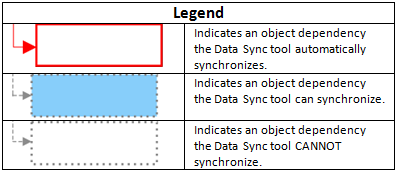
The following notations used in each object’s details, shows the objects that can be added to change sets and what is required in order to properly synchronize those objects between staging and production systems.
-
Synch Pre-requisites
Indicates objects that must exist on the production (target) system before the change set object can be synchronized. If the objects are not present, the synchronization fails. For the objects that can be synced using DST, you can sync a pre-requisite object before syncing the dependent object or simultaneously with the object. The application ensures that the dependency is added into the database for all objects that depend on the pre-requisite object.
-
Optional
Indicates objects that you may or may not want to synchronize to production, depending on business requirements. For example, you may or may not want to synchronize a Product SKU’s Inventory data from staging to production.
-
DST
Indicates that the object can be moved using the Data Sync Tool.
-
IE
Indicates that the object can be exported from the staging system and then imported into production using the Import-Export Tool.
-
CM
Indicates that the object can be created in the production system manually using the Commerce Manager.
-
DB
Indicates that the object can be extracted from the staging database and then inserted into the production database using the database tools
Base Price
Sync Pre-requisites:
- Price List (DST)

The Base Price’s associated Price List must exist on the live system before it can be synchronized. You must either:
-
Add the Price List in a separate change set and sync that change set first
-
Add the Price List to the same change set as the Base Price and sync them both at the same time
Brands
Sync Pre-requisites:
- Master Catalog (IE, DB, CM)

The Brand’s Master Catalog must exist on the live server before you can synchronize the Brand. A Master Catalog cannot be synchronized by the Data Sync Tool, therefore you must either:
-
Use the Import-Export Tool to export the Master Catalog from the authoring system and import it into the live system
-
Use the Commerce Manager to manually create the Master Catalog on the live system
-
Use database tools to extract the Master Catalog data from the the authoring database and insert into the live database
This should only be performed by a database administrator
Catalog Attributes
Sync Pre-requisites:
- Master Catalog (IE, DB, CM)

The Catalog Attributes’ Master Catalog must exist on the live system before you can synchronize the Catalog Attribute.
A Master Catalog cannot be synchronized by the Data Sync Tool, therefore you must either:
-
Use the Import-Export Tool to export the Master Catalog from the authoring system and import it into the live system
-
Use the Commerce Manager to manually create the Master Catalog on the live system
-
Use database tools to extract the Master Catalog data from the the authoring database and insert it into the live database
This should only be performed by a database administrator
Category
Sync Pre-requisites:
- Parent Category or categories (DST)
- Virtual Catalog (DST) or Master Catalog (IE, DB, CM)
- Category Types (DST, IE, DB, CM)
Optional:
- Child Category or categories and Linked Category or categories
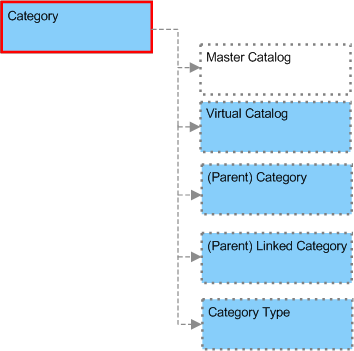
A new Category’s parent Category and Category Type must either exist on the live system before synchronization or be in the same change set that the new Category is in. Be aware that some file system assets may also be required.
For the parent Category, Category Type, and Virtual Catalog you must either:
-
Add it to a separate change set and sync that change set first
-
Add it to the same change set as the new Category and Category Type and sync them at the same time
If the associated Catalog is a Master Catalog, you must either:
-
Use the Import-Export Tool to export the Category from the authoring system and import it into the live system
The exported Category includes its Catalog along with the Catalog’s Category Types.
-
Use the Commerce Manager to manually create the Catalog on the live system
-
Use database tools to extract the Catalog data from the the authoring database and insert into the live database
This should only be performed by a database administrator
Note that child Categories, Linked Categories, and Products are not included when synchronizing a Category and they are not required. If you want to synchronize a Category’s children from authoring to live, you can either:
-
Add them to the same change set as the Category and sync them both at the same time
-
Add them to a separate change set and sync that change set at a later time
Category Types
Sync Pre-requisites:
- Catalog Attributes (DST)

A Category Type’s Catalog Attributes must either exist on the live system before synchronization or be in the same change set as the new Category Type.
For the Catalog Attributes, you must either:
-
Add it to a separate change set and sync that change set first
-
Add it to the same change set as the new Category type and sync them at the same time
Linked Category
Sync Pre-requisites:
- Master Category (DST)

The Linked Category’s associated Master Category must exist on the production system before it can be synchronized. You must either:
-
Add the Master Category to a separate change set and sync that change set first
-
Add the Master Category to the same change set as the Linked Category and sync them both at the same time
Price List
Optional:
- Base Price (DST)
- Price List Assignment (DST)

Price Lists do not have any dependencies that are required to be synced to the production system. However, the Data Sync Tool does not automatically synchronize Base Prices and Price List Assignments associated with the Price List. Thus, if you synchronize a Price List without its Base Prices, it will be created on the production system, but it will be empty. Likewise, if you synchronize a Price List without its Price List Assignments, it will be created on the production system, but it will not be used when evaluating shoppers’ Price Lists in the storefront.
To sync Base Prices and Price List Assignments, you can either:
-
Add them to the same change set as the Price List and sync them all at the same time
-
Add them to their own change set and sync them at a later time
Price List Assignment
Sync Pre-requisites:
- Price List (DST)
- Master Catalog (IE, DB, CM) or Virtual Catalog (DST)

The Price List Assignment’s associated Price List and Catalog must exist on the production system before it can be synchronized.
For the Price List and Virtual Catalog you must either:
-
Add it to a separate change set and sync that change set first
-
Add it to the same change set as the Price List Assignment and sync them both at the same time
If the associated Catalog is a Master Catalog, you must either:
-
Use the Import-Export Tool to export the Catalog from the staging system and import it into the production system
-
Use the Commerce Manager to manually create the Catalog on the production system
-
Use database tools to extract the Catalog data from the the staging database and insert into the production database
This should only be performed by a database administrator
Product
Sync Pre-requisites:
- Parent Category and Linked Category (DST)
- Parent Virtual Catalog or Master Catalog (IE, DB, CM)
- Product Type (DST)
- Brands (DST)
- Tax Code (IE, DB, CM)
- SKU Options (DST)
- SKU Option Values (DST)
Optional:
- Product SKU (DST)
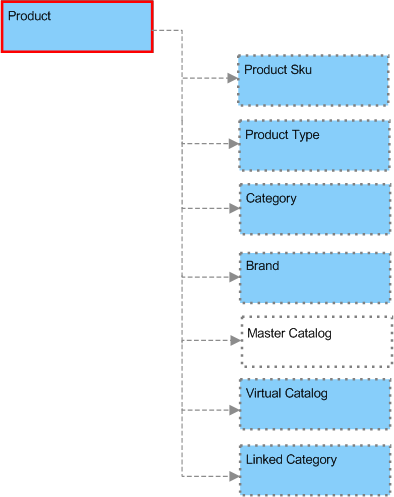
The following associated objects are not synchronized by Data Sync Tool. If the product is dependent on these object, the objects must exist on the production system before the Product can be synchronized:
- Catalogs
- Tax Code
Add the following to a separate change set or to the same change set. For separate change set, sync the change sets first and for same change set, sync all change sets at the same time
For associated Master Catalogs, you must either:
-
Use the Import-Export Tool to export the Catalog from the staging system and import it into the production system
-
Use the Commerce Manager to manually create the Catalog on the production system
-
Use database tools to extract the Catalog data from the the staging database and insert into the production database
This should only be performed by a database administrator
For the Tax Code, you must either:
-
Use the Commerce Manager to manually create it on the production system
-
Use the Import-Export Tool to export the product from the staging system and import it into the production system
The exported Product includes all its Tax Code.
-
Use database tools to extract the data from the the staging database and insert into the production database
This should only be performed by a database administrator
Product Association
Sync Pre-requisites:
- Product (DST)
- SKU Option Values (DST)
- Digital Asset (IE, DB, CM)

The Product Association’s associated Products and Catalog must exist on the production system before it can be synchronized.
For the Products, you must either:
- Add them to a separate change set and sync that change set first
- Add them to the same change set as the Product Association and sync them all at the same time
If the associated Catalog is a Virtual Catalog, you must either:
-
Add it to a separate change set and sync that change set first
-
Add it to the same change set as the Product Association and sync them at the same time
If the associated Catalog is a Master Catalog, you must either:
-
Use the Import-Export Tool to export the Catalog from the staging system and import it into the production system
-
Use the Commerce Manager to manually create the Catalog on the production system
-
Use database tools to extract the Catalog data from the the staging database and insert into the production database
This should only be performed by a database administrator
Product Bundle
Sync Pre-requisites:
- Product (DST)

The Products contained in the Product Bundle must exist on the production system before it can be synchronized. You must either:
-
Add the Products to a separate change set and sync that change set first
-
Add the Products to the same change set as the Product Association and sync them all at the same time
Product SKU
Sync Pre-requisites:
- Product (DST)
- SKU Option Values (DST)
- Digital Asset (IE, DB, CM)
Optional:
- Inventory (CM, IE)

The following associated objects must exist on the production system before the Product SKU can be synchronized:
For the Product and SKU Option Value, you must either:
-
Add it to a separate change set and sync that change set first
-
Add it to the same change set as the Product SKU and sync them at the same time
For associated SKU Option Values, you must either:
-
Use the Import-Export Tool to export the Catalog from the staging system and import it into the production system
The exported Catalog includes following:
- Category Types
- Product Types
- Attributes
- Brands
- SKU Options
- SKU Option Values
-
Use the Commerce Manager to manually create the SKU Option Values on the production system
-
Use database tools to extract the SKU Option Values data from the the staging database and insert into the production database
This should only be performed by a database administrator
Note that Inventory data is not included when the Product SKU is synchronized and it is not required. If you want to synchronize Inventory data from staging to production, you can either:
-
Use the Commerce Manager to manually configure Inventory on the production system
-
Use the Import-Export Tool to export the Product from the staging system and import it into the production system
The Product import-export package includes the Inventory data.
-
Use database tools to extract the Inventory data from the the staging database and insert into the production database
This should only be performed by a database administrator
Product Type
Sync Pre-requisites:
- Master Catalog (IE, DB, CM)
- Tax Code (IE, DB, CM)
- Catalog Attributes (DST)
- SKU Options (DST)

The Product Type’s Master Catalog, Tax Code, Catalog Attributes, and SKU Options must exist on the production server before the Product Type can be synchronized.
For Catalog Attributes, and SKU Options, you can either:
-
Add the Catalog Attribute and SKU Option objects to the same change set as the Product Type and sync them both at the same time
-
Add the associated Catalog Attribute and SKU Option objects to a separate change set and sync that change before the Product Type is synced
Master Catalogs and Tax Codes cannot be synchronized by the Data Sync Tool. For the Product Type’s Master Catalog and Tax code on the production server:
-
Use the Import-Export Tool to export the Catalog and Tax Code from the staging system and import it into the production system
-
Use the Commerce Manager to manually create the Catalog and Tax Code on the production system
-
Use database tools to extract the Catalog and Tax Code data from the the staging database and insert into the production database
This should only be performed by a database administrator
Promotion
Sync Pre-requisites:
- Store (CM, DB)
- Master Catalog (IE, DB, CM) or Virtual Catalog (DST)
- Category (DST)
- Brands (DST)
- Product (DST)
The Promotion’s associated Catalog and Store must exist on the production system before it can be synchronized.
For Virtual Catalog, Category, Brand, Product you must either:
-
Add it to a separate change set and sync that change set first
-
Add it to the same change set as the Promotion and sync them at the same time
The Data Sync Tool does not generate errors when the promotion is based on a product, brand, or category that:
-
Is not in the same Change Set as the promotion
-
Does not exist on the production server
You should synchronize the promotion’s product, brand, or category all in the same Change Set.
If the associated Catalog is a Master Catalog, you must either:
-
Use the Import-Export Tool to export the Category from the staging system and import it into the production system
The exported Category includes its Catalog along with the Catalog’s Category Types.
-
Use the Commerce Manager to manually create the Catalog on the production system
-
Use database tools to extract the Catalog data from the the staging database and insert into the production database
This should only be performed by a database administrator
For the associated Store, you must either:
-
Use the Commerce Manager to manually create it on the production system
-
Use database tools to extract the Store data from the the staging database and insert into the production database
This should only be performed by a database administrator
Saved Condition

Saved Conditions do not have any dependencies that are required to be synchronized to the production system.
SKU Option Values

SKU Option Values do not have any dependencies that are required to be synchronized to the production system.
SKU Options
Sync Pre-requisites:
- SKU Option Values (DST)

The SKU Option’s SKU Option Values are automatically synchronized to the production server when you use the Data Sync Tool to synchronize a SKU Option.
Virtual Catalog
Optional:
- Category (DST) and Linked Category (DST)

Virtual Catalogs do not have any dependencies that are required to be synchronized to the production system. However, the Data Sync Tool does not automatically synchronize the Virtual Catalog’s Linked Categories and Categories. You must either:
-
Add them to the same change set as the Virtual Catalog and sync them all at the same time
-
Add them to their own change set and sync them at a later time
Object Dependency Diagram
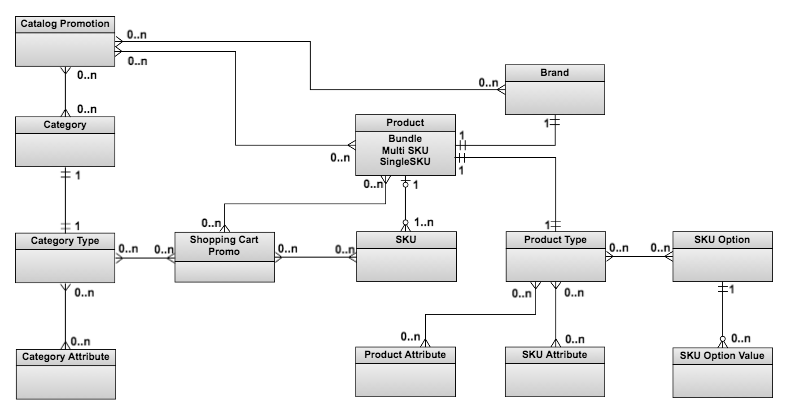
The image below shows the dependency requirements for category types, product types, catalog attributes, sku options, and sku option values.